A meal-ticket dashboard our older volunteers can actually use
Once a month our church puts on a meal for the older single women in our congregation. Tickets are $10, and for years they've been sold on paper at a table by the door. The women running that table are in their 70s and 80s. They're faithful, they know everyone by name, and they have zero interest in learning a complicated app.
Paper works, mostly. But it doesn't tell you at a glance who has paid, it doesn't add up the cash box for you, and it does nothing about the phone numbers and emails the church office never quite got. So I described what I wanted to my AI assistant, handed it a scan of our paper roster, and it built a simple ticket dashboard that same morning.
Here's what I asked for, the design choices that made it work for our volunteers, and a prompt you can give your own assistant.
What I asked for
I didn't write a spec. I described it the way I'd describe it to a volunteer:
- A list of every woman's name. When someone comes to buy a ticket, you tap her name.
- Tap how she paid. Cash, check, or card.
- A pop-up when you tap a name that shows whether we have her phone number, email, and home address, and lets you fill in whatever is missing.
- A way to add new people, because new faces show up.
- Simple enough for the women at the table to run on their own. That was the real requirement. Everything else came second.
Step 1: Hand over the roster you already have
Our roster was a printed list that had been scanned to a PDF. No spreadsheet, no database export. The assistant read the scan and pulled out each woman's name, phone, email, and address.
Scans aren't perfect, and neither are paper rosters. A few email addresses on our printed list had obvious typos, like a misspelled email domain. The assistant didn't quietly "fix" them. It kept them exactly as printed and added a note in that woman's pop-up so someone can confirm the right address with her in person. That's what you want: flag it, don't guess.
Before you use it, spot-check the names against the paper list. Read through it once with the roster in hand.
Step 2: Design for the people at the table
This is the part that matters most. The assistant made a handful of choices specifically for older volunteers, and every one of them is worth copying.
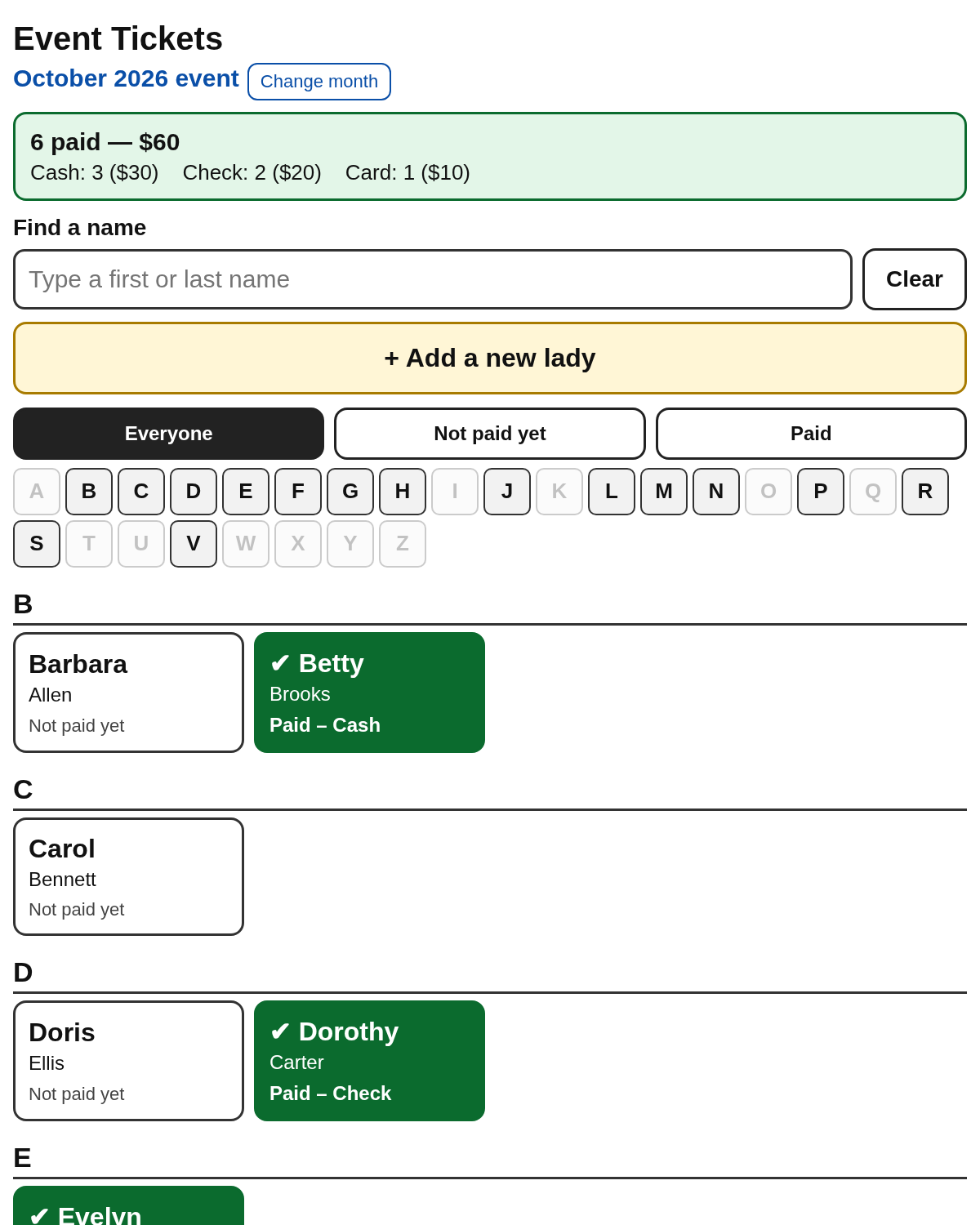 The main screen, shown with made-up names. Paid names turn green.
- Huge text and huge buttons. Names are large enough to read at arm's length, and every button is big enough for an unsteady finger.
- Words, not icons. The payment buttons say Cash, Check, and Card. There are no symbols to decode. The add button says + Add a new lady, not a plus sign in a corner.
- Green means paid. When a woman pays, her name turns solid green with a check mark and shows how she paid. Anyone walking up to the table can see who's done.
- A "Find a name" box and an A–Z row. Type a few letters of a first or last name, or tap a letter to jump there. There's also a simple Everyone / Not paid yet / Paid switch.
- Running totals at the top. How many have paid and how much should be in the box, broken out by cash, check, and card. Counting the money at the end of the night gets easier.
- Easy undo. Tapped the wrong method? Tap the right one. Marked the wrong person paid? There's a big "Mark NOT paid" button, and it asks "Are you sure?" first so nobody undoes a payment by accident.
- A simple passcode. The list holds personal contact information, so it sits behind a passcode. We picked one that's short and easy to remember, and capital letters don't matter. Each tablet or phone asks for it once and then remembers it.
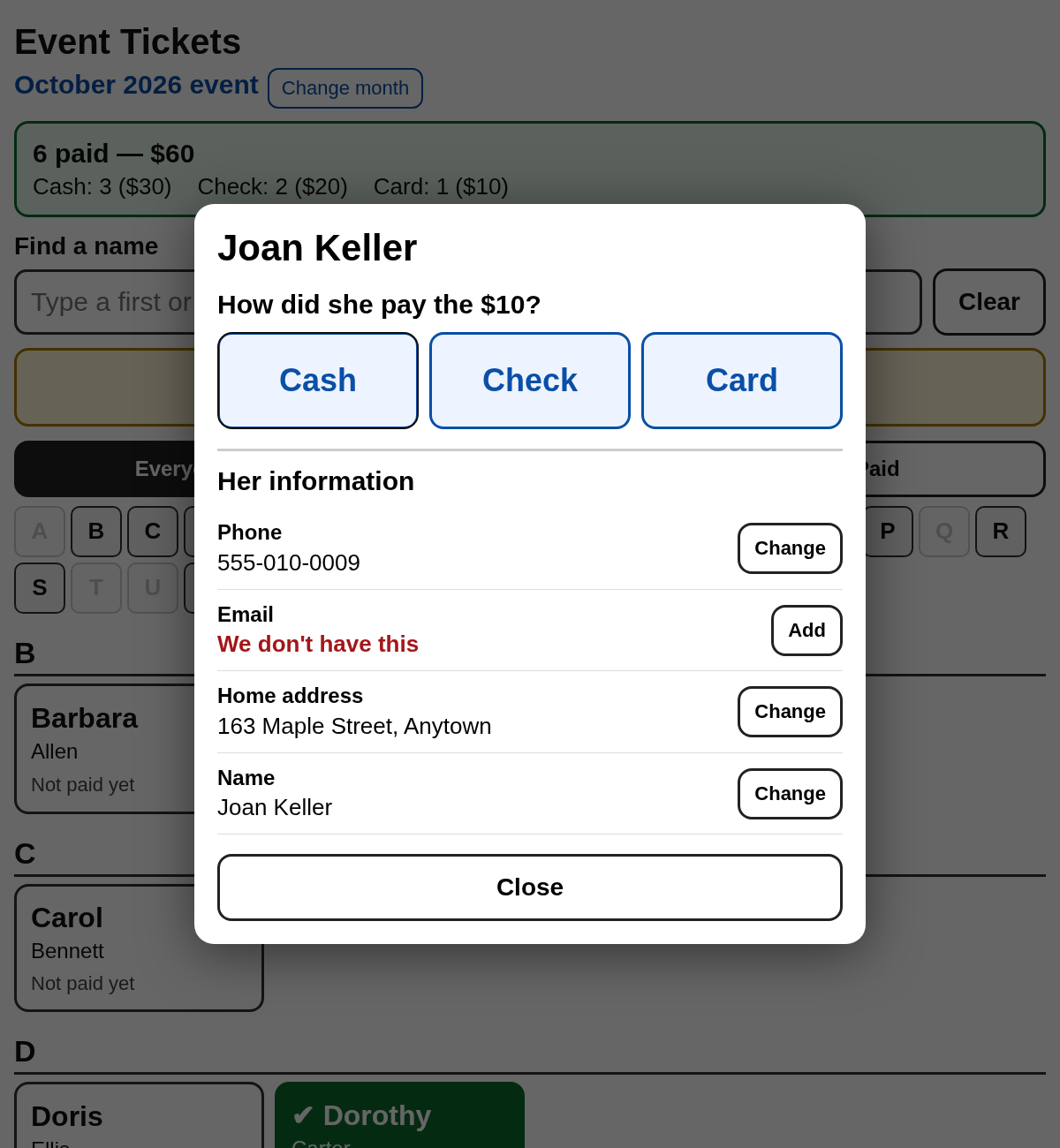 Tap a name and this pop-up opens. Missing information shows in red with an Add button.
Step 3: Let it run month to month
A few behind-the-scenes choices keep it simple to keep using:
- Payments reset every month, and contact info carries over. Each month starts with everyone at "Not paid yet," but any phone number, email, or address someone added stays put. There's a "Change month" button if you need to look back.
- It works on any tablet or phone. It's a web page, so there's nothing to install. Open the link, type the passcode, and go. More than one volunteer can work from it at the same time.
- You can download the list. A button exports a spreadsheet, so the church always has a copy.
The quiet bonus: a better church database
The pop-up does something the paper never did. Every time a volunteer sees "We don't have this" in red next to an email or phone number, she can ask the woman standing right in front of her and type it in. One ticket sale at a time, the church's contact list fills in its gaps.
We'll copy those updates into our church management software so the office benefits too. If your assistant is connected to yours, you can ask it to do that step for you, and have it check for an existing person first so you don't create duplicates.
The prompt
Copy this, attach a scan or photo of your roster (or a spreadsheet if you have one), and change the details to fit your ministry:
Our church holds a monthly meal for [describe the group]. Tickets are $[price] and are currently sold on paper. I'm attaching our roster. Please build a simple web dashboard for the ticket table. It should list every person's name. When a volunteer taps a name, open a pop-up where they tap Cash, Check, or Card, and the name turns green and shows how they paid. The pop-up should also show whether we have the person's phone number, email, and home address, and let the volunteer add or fix anything that's missing. Include a big button to add a new person, a search box, and running totals by payment method. The volunteers are in their 70s and 80s, so use very large text, big buttons labeled with words (not icons), and an easy way to undo a mistake that asks "Are you sure?" first. Payments should reset each month, but contact information should carry over. It needs to work on any tablet or phone, protect the list with a simple passcode, and let us download the list as a spreadsheet. When you read the roster, copy everything exactly as written. If something looks like a typo or you can't read it, flag it for us instead of guessing.
How to set this up at your church
- Find your roster. A paper list, a scan, a photo, or a spreadsheet all work.
- Ask the people who'll run the table what bugs them about paper. Their answers belong in your prompt.
- Give your assistant the prompt above and the roster.
- Check the names against the paper list and fix anything the scan got wrong.
- Do a practice run with your volunteers before the meal. Hand them the tablet, let them sell a pretend ticket, undo it, and add a new person. Watch where they hesitate and ask the assistant to fix it.
- Keep paper as a backup the first month. If the Wi-Fi drops, the meal doesn't have to.
- Copy new contact info into your church database after each meal.
A few cautions
- This is personal information. Names, phone numbers, and home addresses of older women should never sit on a public page. Keep it behind a passcode, share the link only with the volunteers who need it, and don't post it anywhere.
- Check where it lives before you rely on it. Ask your assistant where the data is stored and how to get a copy out. Make sure the church, not one person's laptop, owns it.
- Don't let the assistant "clean up" the roster on its own. Typos and unreadable entries should be flagged for a person to confirm.
- Let the volunteers have the last word. If they want a button bigger or a label reworded, they're right.
Questions pastors ask
- Do I need to know how to code?
- No. I described what I wanted in plain words, the same way I'd explain it to a volunteer. The assistant wrote and set up the dashboard.
- What if our roster is only on paper?
- That's what we had. A scan or a clear phone photo is enough. Just check the names afterward.
- Will older volunteers really use it?
- That was the whole design goal: huge text, word buttons, green for paid, and an undo that asks first. Do a practice run with them before the meal, and keep paper handy the first month.
- What about privacy?
- The list holds personal contact information, so it sits behind a passcode and the link is shared only with volunteers who need it.
- What happens to the payments each month?
- They reset to "Not paid yet" at the start of each month. Contact information carries over.
- Can we use it for other events?
- Yes. The same idea works for any ticketed meal, retreat sign-in, or class roster. Change the price and the labels in the prompt.